Out-of-Band Registration
Description
The out-of-band authentication requires the creation of FIDO UAF credentials both on the user's device and on the FIDO UAF server. This operation is called Registration. Without registration, a user will not be able to authenticate. The security requirements of the application protected by Nevis define the nature of the authentication. This could be fingerprint, PIN/password, face recognition, or a combination of several authentication mechanisms.
The out-of-band registration differs from the in-band registration by the additional communication channel, which the out-of-band registration uses to obtain the FIDO UAF Registration Request. A common out-of-band scenario is where a user accesses a resource via laptop or desktop computer, but would like to authenticate with his mobile device (which must be FIDO UAF-enabled). Typically, the application on the mobile device fetches the Registration Request based on a QR code.
Prerequisites
- The application generating the credentials has FIDO capabilities. It contains an embedded FIDO Client with access to one or several FIDO Authenticators.
- The user already has existing credentials (a password, for instance) that can be used to authenticate.
- Nevis is configured in such way that only authenticated clients can register FIDO UAF credentials.
- Based on the provided information, the Relying Party Backend Application is able to render the QR code required for registration.
Rendering the registration QR code is not part of the Nevis Mobile Authentication Solution as the registration is typically done directly in the Relying Party Application itself. The documentation provides hints and code snippets to guide the integration.
Example Using QR Code
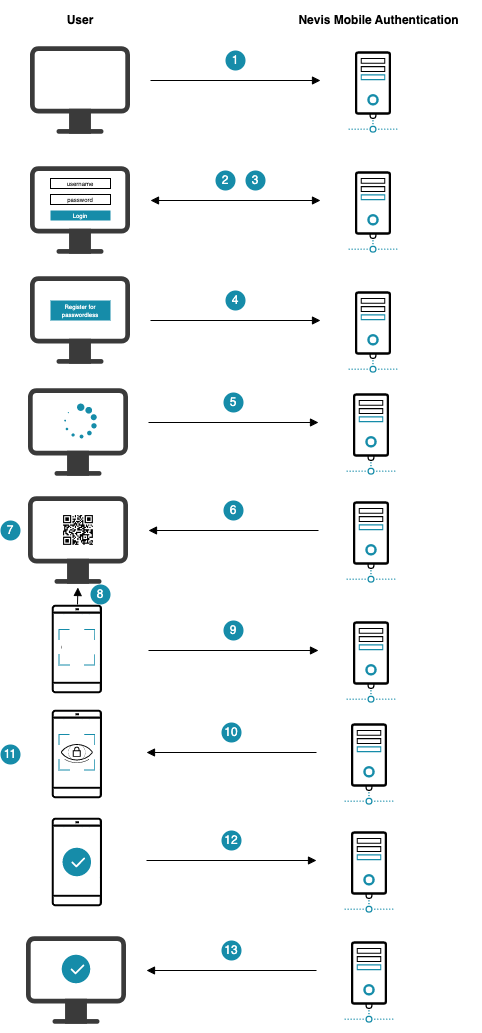
In the following example, a QR code is used to embed a mobile device into the registration flow. It thereby provides an additional channel ('out-of-band') outside the connection between laptop and Nevis Mobile Authentication. It is assumed that the user has two devices: A laptop to access an e-banking application, and a mobile device with FIDO capabilities to generate the FIDO UAF credentials. The e-banking application is protected in the same realm/domain as the fido Create Registration Token Service.
The numbers in the description below correspond with the numbers in the next figure.
- The user tries to access the e-banking application from a laptop's web browser.
- Nevis detects that an unauthenticated user is trying to access the e-banking application. Nevis asks the user to authenticate. This authentication must follow the security policy required to register new FIDO credentials (a password).
- The user authenticates by providing a password. The user is allowed to access the e-banking application through his browser.
- The user asks the e-banking application to perform a registration.
- The e-banking application loads some JavaScript in the web browser. Once loaded, the JavaScript sends a request to register to Nevis, which forwards it to the Create Registration Token Service. Both the registration application and the Create Registration Token Service are defined in the same realm/domain. This means that the registration application is allowed to access the Create Registration Token Service.
- Nevis generates a token and returns it to the browser. The JavaScript in the browser encodes the token and the token redemption URL in a QR code.
- The QR code is presented to the user in the browser screen. The user is instructed to scan the QR code using a mobile device.
- The user scans the QR code using a FIDO enabled application in the mobile device.
- The application in the mobile device decodes the QR code and sends the token to the specified redeem token URL. The redeem token URL is assumed to be unprotected.
- Nevis responds to the mobile device. This response includes the authentication methods (fingerprint) allowed by the e-banking application protected by Nevis Mobile Authentication.
- The user authenticates using an authenticator that complies with the requirements of the e-banking server application. New FIDO credentials are created on the mobile device.
- The credentials are sent to Nevis.
- The mobile application stores the credentials and notifies the user about the successful registration.
Note that from step 7 onwards, the JavaScript in the user's browser can query the fido Status Service, to show progress and provide hints to the user in the laptop's screen.
For examples of JavaScript snippets that cover steps 5, 6 and 7 on browser level, see Out-of-Band Registration Client Code Examples.
Dispatch Target Registration
Also part of a complete, successful out-of-band registration is the registration of the mobile device for authentication using push notifications. This procedure is called dispatch target creation. It is out-of-scope of the FIDO UAF Registration and covered by the Nevis Mobile SDK.
This is how it works in a nutshell: Immediately after successful completion of the example flow described above, the mobile device creates a dispatch target ID in Nevis Mobile Authentication. The backend application can later use this dispatch target ID to send out-of-band authentication requests via push notifications to the mobile device. Refer to Dispatch Target Management for details.
Technical Flow
The technical flow in the next figure explains the component interaction in detail. The step numbers in the figure do not correlate with the simplified example above.
@startuml

skinparam shadowing false
skinparam BoxPadding 10
skinparam sequence {
    ArrowColor #168CA9
    LifeLineBorderColor #047D82
    ParticipantBorderColor #168CA9
    ParticipantBackgroundColor #168CA9
    ParticipantFontName Frutiger
    ParticipantFontColor white
    ActorBackgroundColor #168CA9
    ActorBorderColor #168CA9
    ActorFontName Frutiger
    GroupBorderColor #168CA9
    GroupBorderThickness 1
    DividerBackgroundColor #168CA9
    DividerBorderColor #168CA9
    DividerBorderThickness 1
    DividerFontColor white
    DividerFontName Frutiger
    BoxBorderColor #168CA9
    BoxBackgroundColor #ECECEC
}
skinparam note {
    FontName Frutiger
    BorderColor #168CA9
    BackgroundColor #F5F5F5
}

title Out-of-band registration

actor User

box "Desktop Device" #F5F5F5
    participant "Browser" as browser #75C3D7
end box

box "Mobile Device" #F5F5F5
 participant "FIDO UAF\nAuthenticator" as Authenticator #75C3D7
 participant "Nevis Access App" as app #75C3D7
end box

box "Nevis Backend"
    participant nevisProxy as proxy
    participant nevisAuth as auth
    participant nevisFIDO as fido
    participant nevisIDM as idm
end box

autonumber
User -> browser ++ : Open browser app

== Legacy authentication ==

browser -> proxy : Access relying party service
note right : Trigger legacy authentication
ref over browser, idm : Legacy authentication flow

== Initiate registration ==

autonumber resume
User -> browser : Initiate registration

group HTTP API: Dispatch Token Service
    browser -> proxy : Request registration
    proxy -> fido ++ : Forward request for registration
end group

autonumber stop
browser <-- fido -- : registration link
autonumber resume
browser -> browser : Render registratoin link\nin QR code
User -> app ++ : Open mobile app
browser <- app : Scan QR code
app -> app : Decode token

group HTTP API: Redeem Token Service
    app -> proxy : Redeem token
    proxy -> fido ++ : Forward redeem token request
end group

autonumber stop
app <-- fido -- : Registration Request

== Trusted facets ==

autonumber resume

group HTTP API: Facets Service
    app -> proxy : Fetch trusted facets
    proxy -> fido ++ : Forward trusted facets request
end group
autonumber stop
app <-- fido -- : Trusted facets

== Client processing ==

autonumber resume
Authenticator <- app ++ : Trigger user authentication
User <- Authenticator ++ : Authenticate
autonumber stop
return
autonumber resume
Authenticator -> Authenticator : Generate key material\nfor ""username""
hnote over Authenticator
    private <size:20><color:red><&key></color></size>
    public <size:20><color:green><&key></color></size>
end note
Authenticator -> Authenticator : Create ""Assertion""\nwith <size:20><color:green><&key></color></size>
Authenticator --> app -- : ""Assertion""
app -> app : Generate ""RegistrationResponse""\nwith ""Assertion""
autonumber resume

== Complete registration ==

group HTTP API: Registration Response Service
    app -> proxy : ""SendUAFResponse""\n(""RegistrationResponse"")
    proxy -> fido ++ : Forward ""SendUAFResponse""\n(""RegistrationResponse"")
end group

autonumber stop
hnote over fido
    public <size:20><color:green><&key></color></size>
    policy <size:20><&file></size>
    metadata <size:20><&file></size>
end note
autonumber resume
fido -> idm ++ : Store <size:20><color:green><&key></color></size> as ""CredentialRecord""\nfor ""username""
autonumber stop
return
autonumber resume
fido -> fido : Status session\n""succeeded""
app <-- fido : ""ServerResponse""
loop until timeout

    group HTTP API: Status Service
        browser -> proxy : Query registration status
        proxy -> fido : Query registration status
    end group

    alt registration in progress
        browser <-- fido : In progress
    else succeeded
        browser <-- fido -- : Display success
        deactivate browser
    end
end

== Dispatch target registration ==

... Authenticate again ...

group HTTP API: Dispatch Target Service
    app -> fido ++ : Create dispatch target end group

fido -> idm ++ : Store dispatch target

@enduml
The complete out-of-band registration flow described here also contains a final conversation that is foreign to the FIDO UAF Registration: the dispatch target registration flow. This secondary flow enables the use of push notifications for FIDO UAF authentication – without registering a dispatch target, no push messages can be sent later. Refer to Dispatch Target Management for an in-depth description.
The numbers in the list correlate with the step numbers in the previous figure.
The user opens the relying party application in a browser.
The browser is pointed at the protected relying party resource. proxy detects that the user is not authenticated. A legacy login flow is initiated by auth.
Endpoint:
https://<proxy-host>:<proxy-port>/ebankingThe legacy login flow is not documented as it heavily depends on the customer's requirements.
The user initiates the FIDO UAF registration process from inside the app in the browser (for example, by pressing a button Register for FIDO UAF).
References:
The app requests registration by accessing the Registration Dispatch Token endpoint of Nevis Mobile Authentication at proxy. The link dispatcher is used to obtain a link which can be rendered inside a QR code.
Endpoint:
https://<fido-host>:<fido-port>/nevisfido/token/dispatch/registrationReferences:
proxy transparently forwards the request to the fido HTTP API. fido answers with a token (for a Registration Request, to be retrieved out-of-band).
The browser application uses a bit of JavaScript code to render the link into a QR code. The QR code is used to tie a second channel into the flow: the mobile device (hence the term 'out-of-band registration').
Example code snippets to integrate the QR code functionality are presented in Out-of-Band Registration Client Code Examples.
The user opens the Nevis FIDO UAF-enabled mobile application on a mobile device. This mobile device must be furnished with a camera. The user selects the option Register using QR code reader in the mobile app. This triggers the device to read the QR code.
References:
The mobile app reads the QR code from the desktop computer screen.
The mobile app decodes the scanned QR code, which yields a token. The token is an opaque piece of data, which can only be redeemed once, to initiate a proper FIDO UAF Registration Operation.
References:
The mobile app redeems the token at the Redeem Token endpoint.
Endpoint:
https://<fido-host>:<fido-port>/nevisfido/token/redeem/registrationReferences:
proxy forwards the redeem token request to fido. In turn, fido sends a Registration Request to the FIDO UAF client on the mobile device.
The FIDO UAF client fetches the trusted facets.
Endpoint:
https://<proxy-host>:<proxy-port>/nevisfido/uaf/1.1/facetsproxy forwards the trusted facets request to fido, upon which fido returns the trusted facets back to the FIDO UAF client.
Endpoint:
https://<proxy-host>:<proxy-port>/nevisfido/uaf/1.1/facetsReferences:
Now the FIDO UAF client/mobile app begins a user interaction procedure to authenticate the user. The necessary information is first transferred to the mobile device's FIDO UAF Authenticator.
The actual user interaction takes place: The user must authenticate using any of the acceptable methods (fingerprint, username/password, etc.).
After successful authentication, the FIDO UAF Authenticator generates the necessary key material for the authenticated user.
The authenticator creates a FIDO UAF Assertion containing the crypto information, especially the new public key, for the new registration.
The authenticator returns the assertion to the FIDO UAF client/mobile app.
The FIDO UAF client/mobile app packages the assertion in a Registration Response, in accordance with the FIDO UAF protocol.
The mobile app sends the
RegistrationResponse, wrapped up in aSendUAFResponse, to the Registration Response endpoint.Endpoint:
https://<proxy-host>:<proxy-port>/nevisfido/uaf/1.1/registrationReferences:
proxy forwards the
SendUAFResponseto fido.Endpoint:
https://<fido-host>:<fido-port>/nevisfido/uaf/1.1/registrationReferences:
fido performs necessary validation on the incoming Registration Response. When validation is successful, a Credential Record for this registration is stored in idm.
fido marks the FIDO UAF session for this conversation as succeeded.
fido returns the Server Response to the mobile app.
References:
All the while during the out-of-band procedure negotiations via the mobile device, the desktop browser app queries fido for the status of the ongoing FIDO UAF Registration Operation. For this purpose, the browser app uses a JavaScript app that repeatedly queries the Status endpoint.
Endpoint:
https://<fido-host>:<fido-port>/nevisfido/statusReferences:
proxy forwards the status query to fido by querying the Status endpoint of fido.
As long as fido has not yet received and validated a Registration Response from the mobile app, the out-of-band registration is still in progress. In this case, fido will return an "in progress" status (as always via proxy).
The out-of-band registration is successfully completed when fido has received a Registration Response from the mobile app, validated and processed it. In this case, fido will return a "succeeded" status (as always via proxy), and mark the FIDO UAF session as "done". The mobile app then displays a success message like "Registration successful" to the user.
Configuration Snippets
You will find example configuration snippets for all involved components in Nevis Component Configuration Examples.